
Intelligent SyncFrame rate matched · 23.976 Hz
Intelligent Sync
The TV switches to the film’s own frame rate before it starts, so slow pans don’t judder.
A small card says what changed, then gets out of the way.
 Rainglass
Everything you watch, in one app.
Films and series from all your servers, your streaming apps and live TV, together on one home screen. Ask its AI anything, and carry on where you left off on your TV or your phone.
Coming soon to Android TV, Google TV, Fire TV, Android phones, iPhone and iPad. Apple TV to follow.
Try the Home screen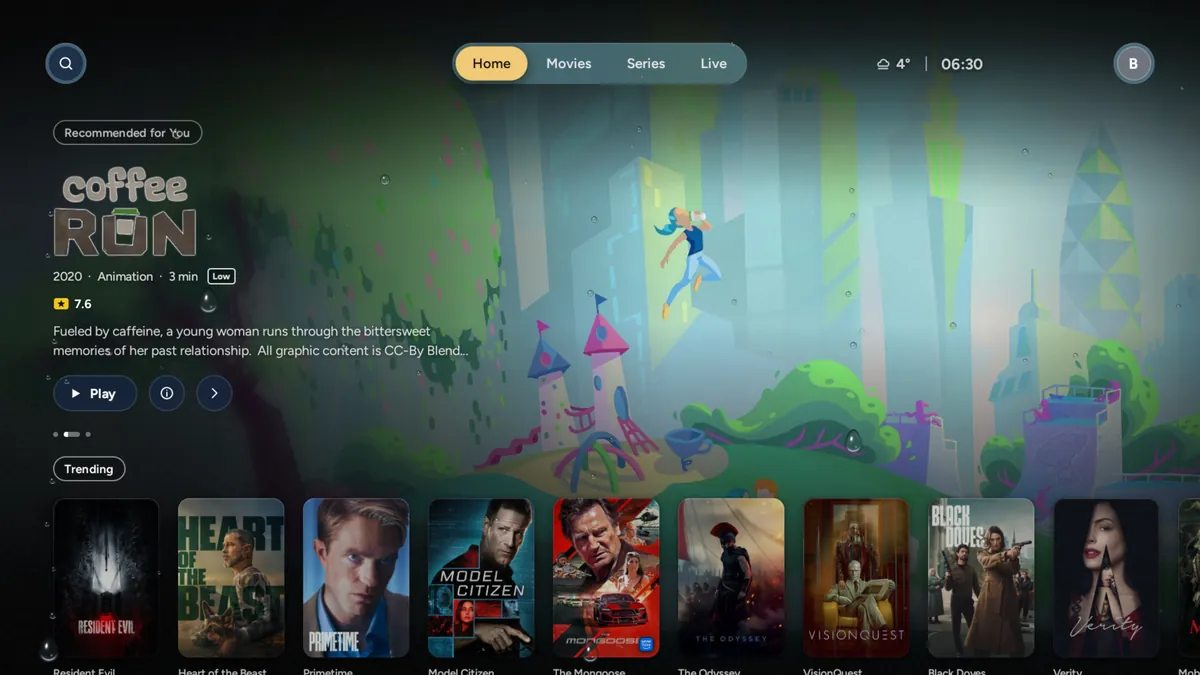
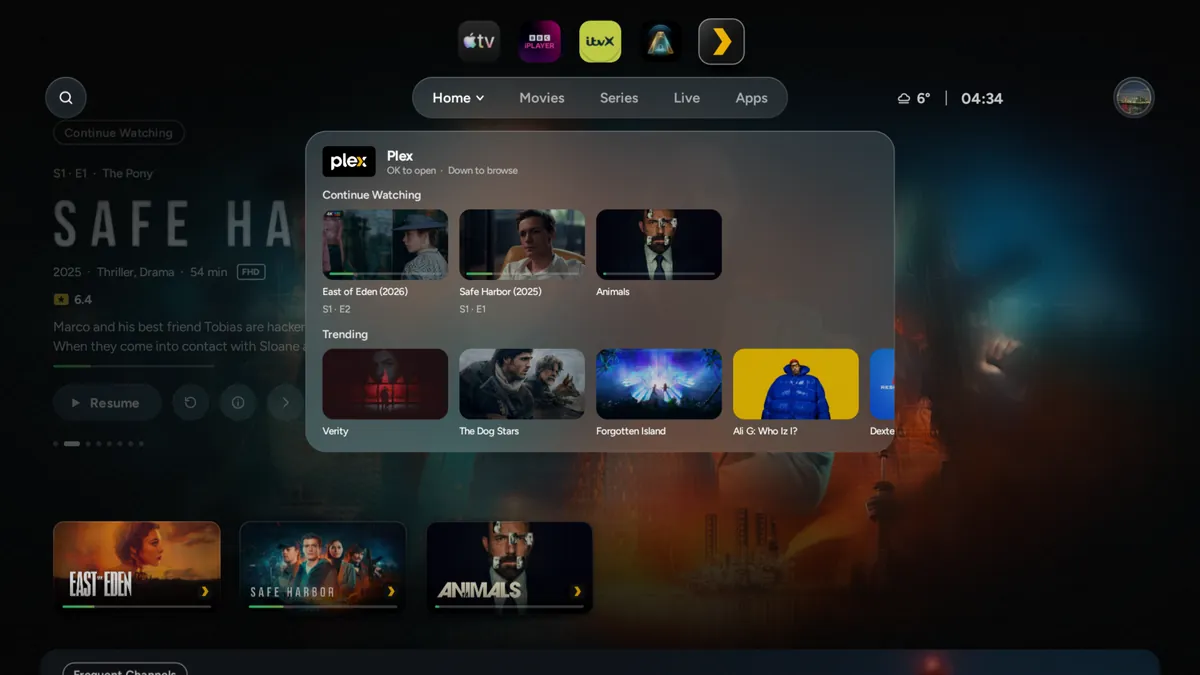

Continue Watching
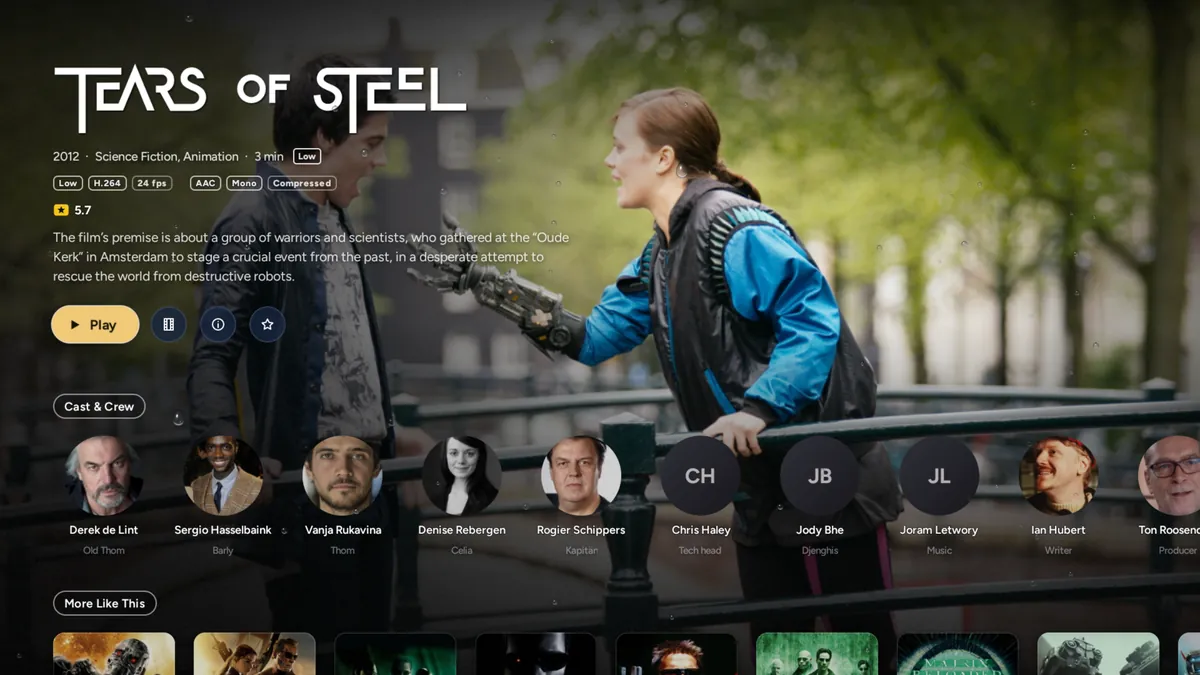
Tears of Steel
Scientists and fighters gather in an old church in Amsterdam to replay one moment from the past and stop the robots.
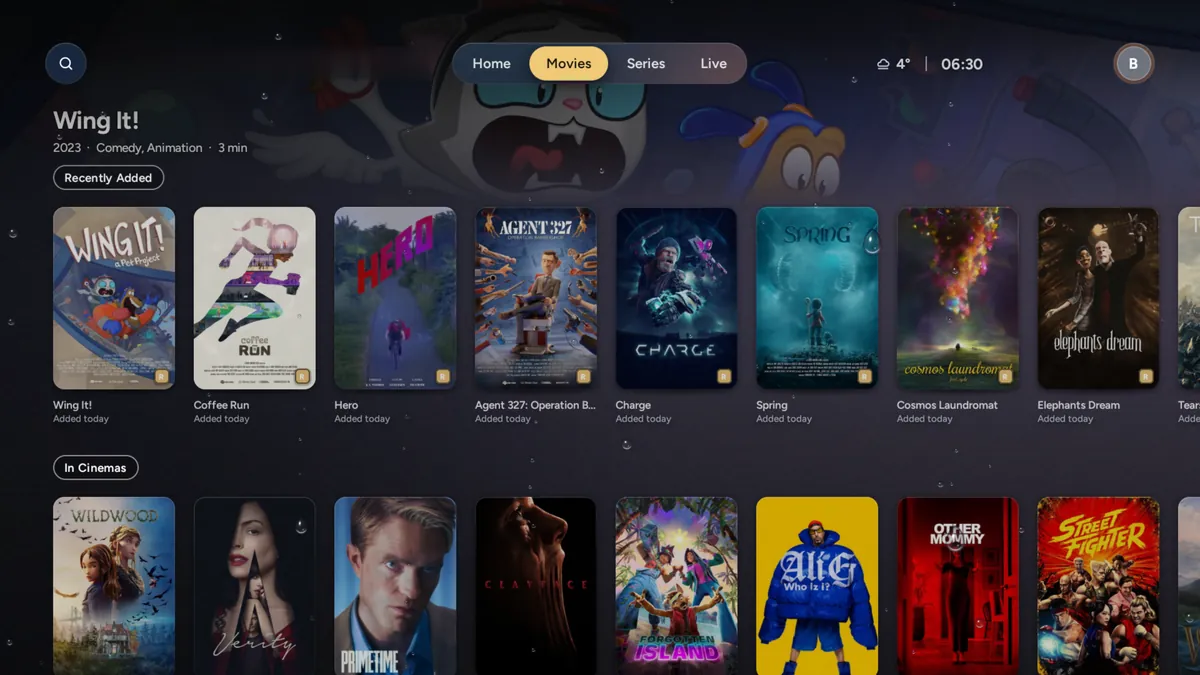
This is Rainglass’s Home, working. Use the arrow keys, swipe across it or tap a title: the top of the screen follows what you pick, the way it does on the TV.

Your Plex servers and libraries, your watchlist and Plex Lists, and a profile for each person in a Plex Home.
Jellyfin
Your Jellyfin servers and libraries, signed in once, with where you stopped kept on the server.
Emby
Your Emby servers and libraries, side by side with the rest in one library.
HDHomeRun
Live TV from an HDHomeRun tuner on your home network. Rainglass finds it by itself and adds its channels to Live TV.
Rainglass works with these products; it isn’t made, endorsed or supported by their owners.
An AI built into Rainglass. Ask in your own words, out loud or typed: it searches your libraries, channels and guide, explains what’s on screen, tidies your channels and changes settings for you. The AI only ever sees your question.
Say what you’re in the mood for, in your own words. It looks through every server, app and channel you have at once, and answers questions as well as searching.
Who’s that? What did I miss? Ask about the film, episode or channel you’re watching, and the answer fits the moment you’re at.
On Android TV and Google TV, hold Menu on the remote over Home, a film or a live channel, and it’s listening. On Fire TV, type your question.
“Turn on subtitles.” “Make the text bigger.” “Use Fahrenheit.” It changes the setting there and then, with Undo.
Tell it how you like your channels, and it sorts, hides and renames groups. You see every change first, and Undo puts it back.
Searching is included, with nothing to set up. For questions about what’s playing, tidying and settings, sign in to OpenRouter for free, use your ChatGPT plan, or add your own OpenAI, Anthropic or Google Gemini key, and pick the model.

Ask about thisClose
Your question
What’s happening?Who is this character?What did I just miss?Remind me who’s who
“Who is this character?”
That’s Big Buck Bunny, a large, gentle rabbit who lives in a burrow at the edge of the meadow. The three rodents in the tree are Frank, Rinky and Gimera, and they’re about to spoil his morning.
Ask anything about what’s playing.
On a live channel, an episode or a film: what’s happening, who someone is, what you just missed. Say it or type it. A film waits while you ask; live TV plays on, and its answers draw on the last five minutes of subtitles too.
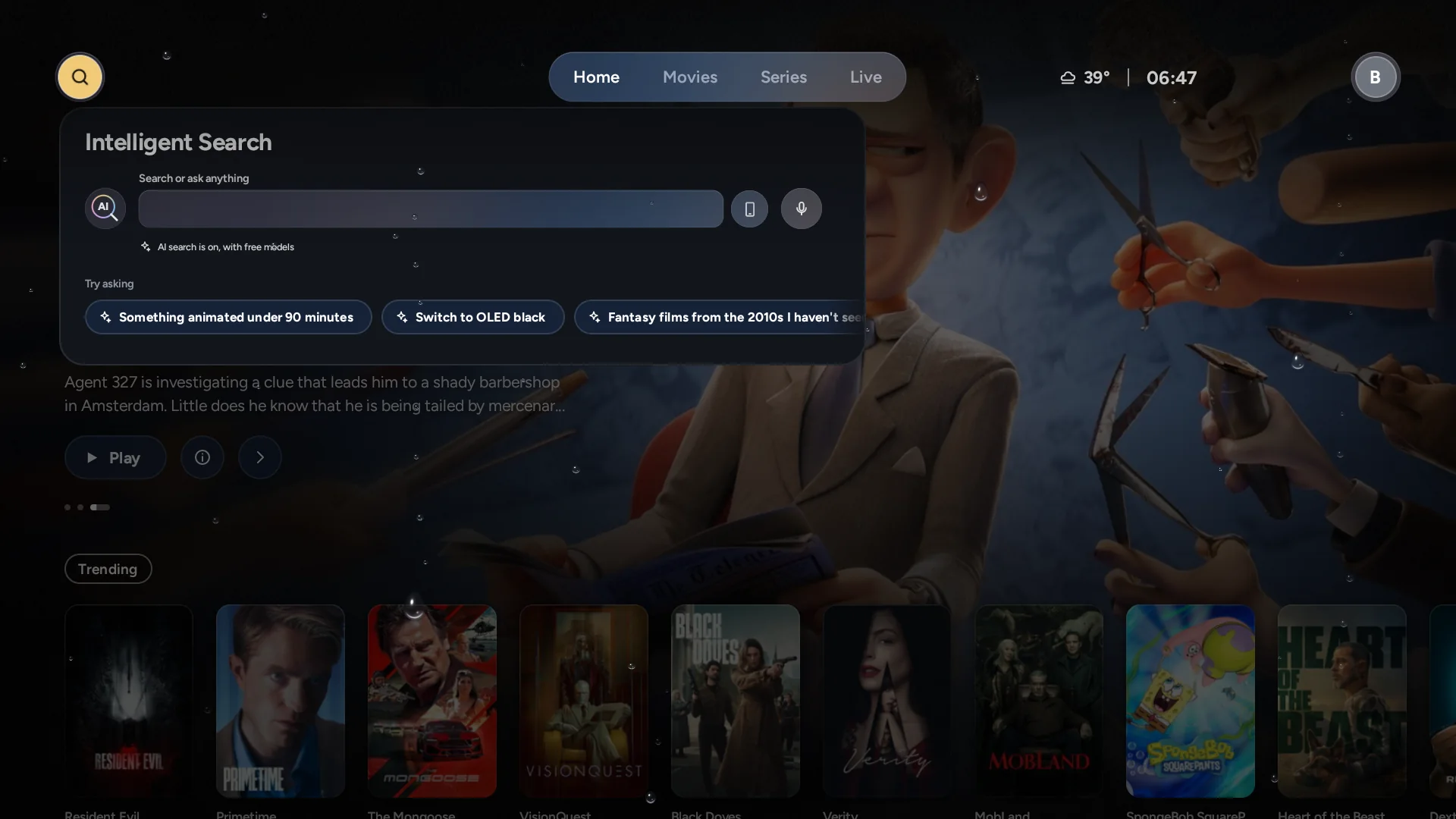
Searching works with no setup, using the AI included with Rainglass. A free OpenRouter sign-in, a ChatGPT plan or your own key adds more searches, questions about what’s playing, tidying and settings by asking. On your computer, your own AI assistant can run Rainglass Server too.
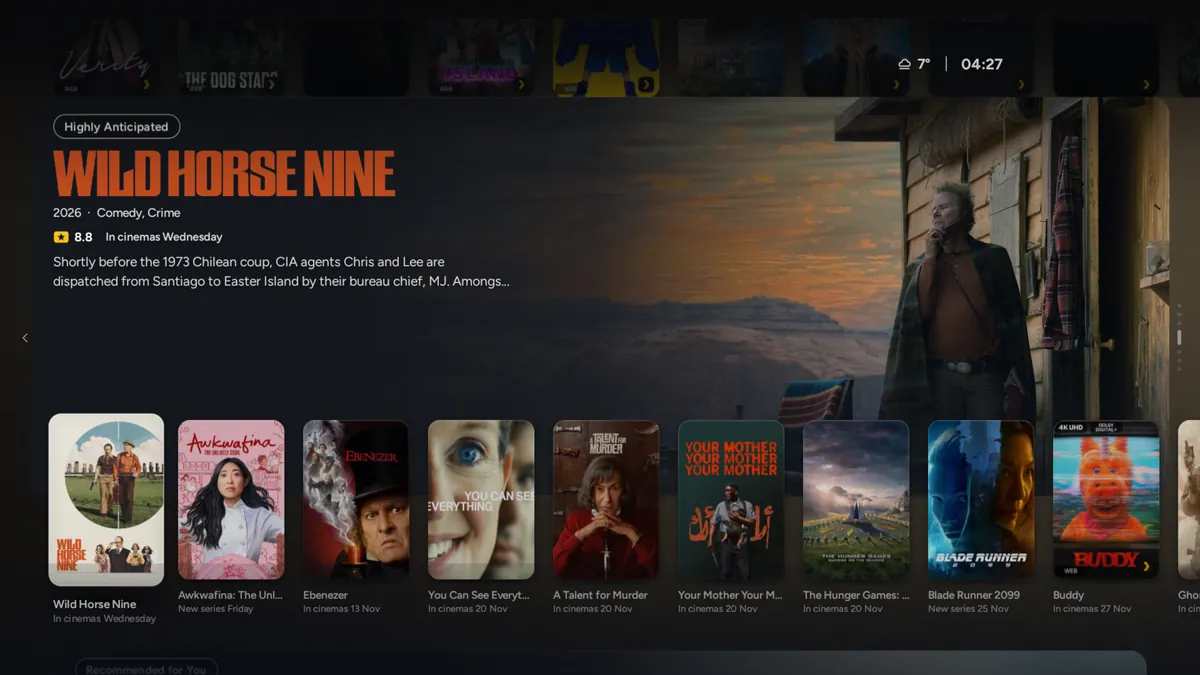
Home carries on below Continue Watching.
Switch Stages on and each row after it sits on a stage: the title you rest on fills the screen behind its shelf, with the rows above and below still in view. Scroll on and one stage hands over to the next.
Leave it off for plain rows, which are quicker on a streaming stick.
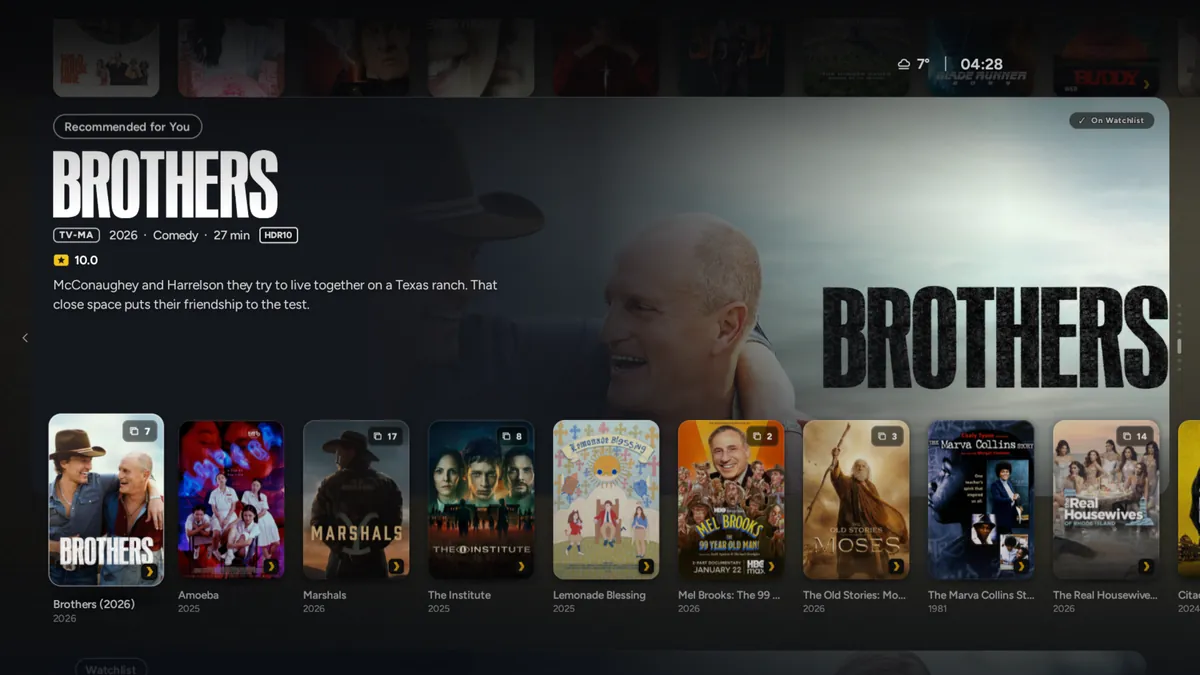
With Live TV set up, rest on a channel and its live picture plays on the stage behind it.
The same stages carry the Top 30 and Recently Added, one shelf at a time.

Coast LeagueLive · 67′
Harbour TownHAR2 – 1NTHNorthgate
Matchday 8 · Kick-off 15:00
On the ticker · 1 of 2
Live HAR v NTH67′
Live BAY v FORHT
Spoiler-free: off
Brighton
13°
Sunny H 15° L 9°
Mon8°14°
Tue9°13°
Wed7°13°
Thu6°15°
Weather from MET Norway
Sunday 25 October
The corner of Home keeps the score, the weather and your week.
Rest on one and its card opens.
Libraries, watchlists, your own rows and where you stopped.
Rainglass Player plays the films and episodes in your libraries, and Live TV runs on the same engine.
Intelligent SyncFrame rate matched · 23.976 Hz
The TV switches to the film’s own frame rate before it starts, so slow pans don’t judder.
A small card says what changed, then gets out of the way.
AudioEnglish · 5.1
Intelligent DialogueOn
SubtitlesOff
Brings quiet dialogue up and sudden loud moments down, so voices stay clear.
Once on, it stays on until the film or episode ends or you close the player.
 Skip intro
From your server’s markers, the file’s chapters, or what earlier episodes had.
10 seconds back and 30 forward, exactly.
Tears of SteelEnds at 22:41
7:0912:14
The player shows the time it will finish if you keep watching.
The time in this panel comes from your own clock.
English · Dolby AtmosTo your receiver
English · DTS-HD MA 7.1To your receiver
Commentary · StereoDecoded here
Atmos and DTS:X go to your soundbar or receiver untouched.
Formats the TV can’t play are decoded on the box.

It loads in the background while the credits roll, so it starts at once.
You set the countdown: 3, 5, 10, 15 or 20 seconds.
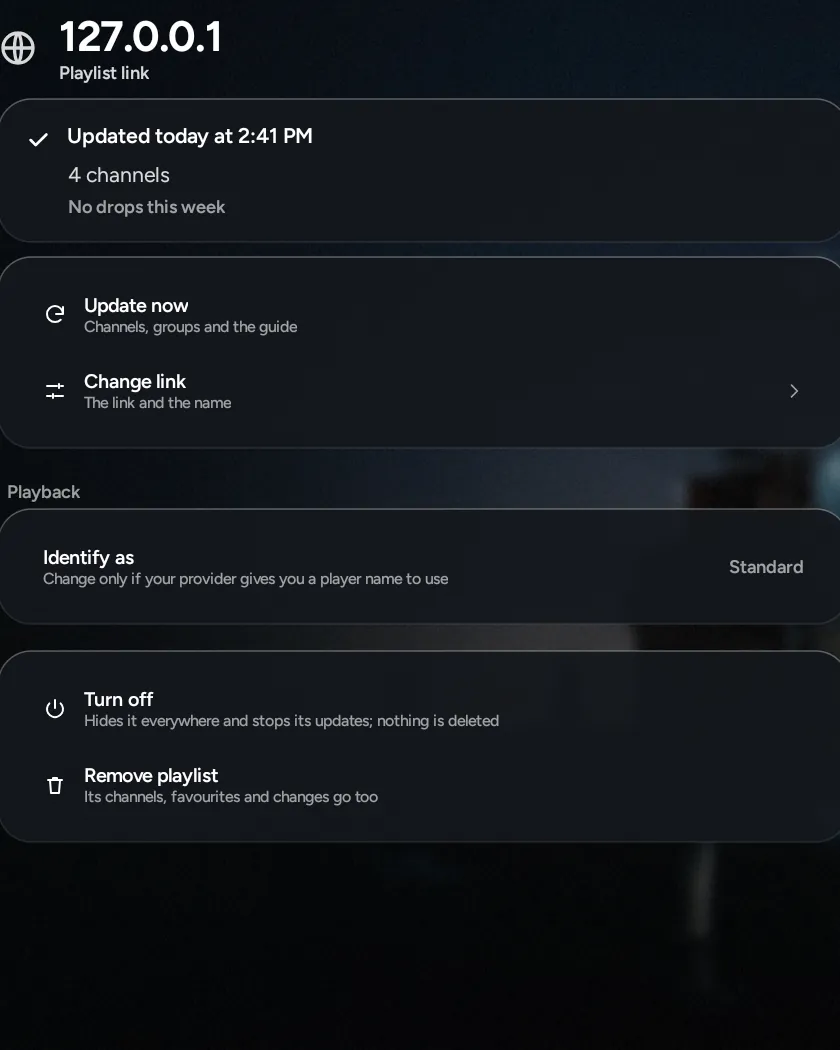
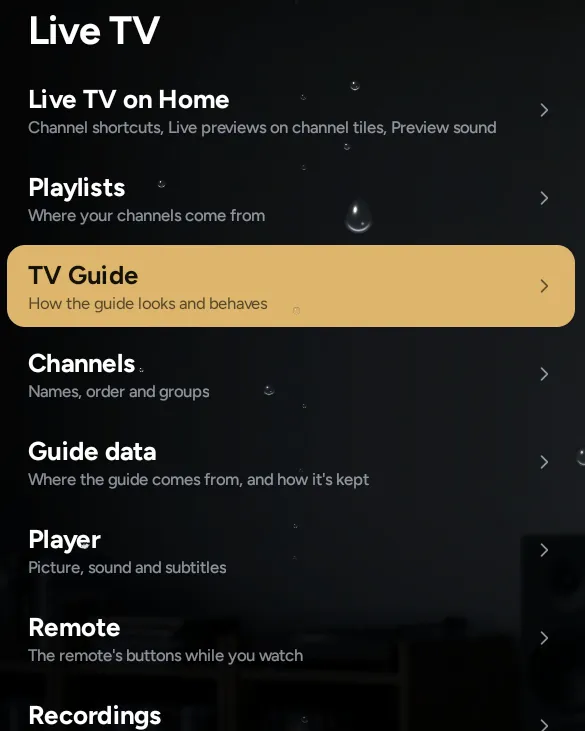
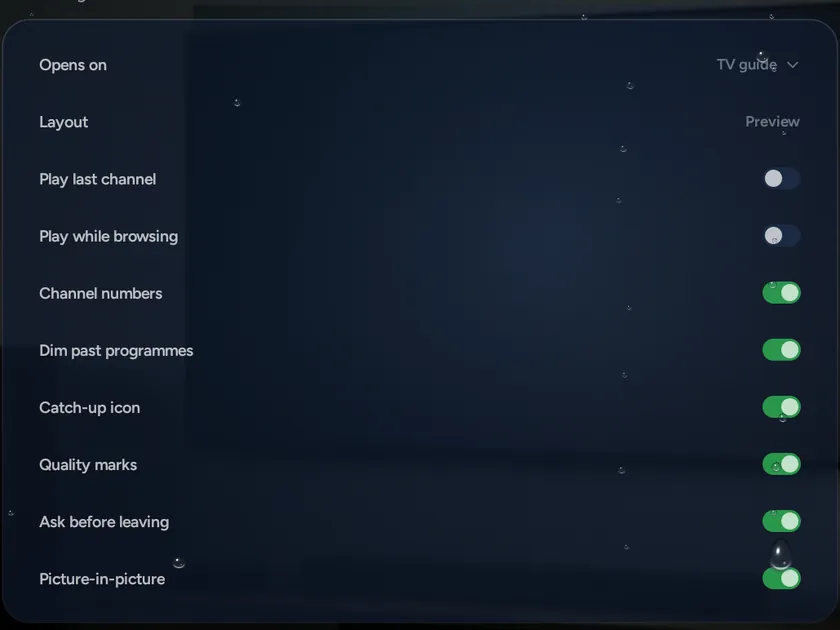
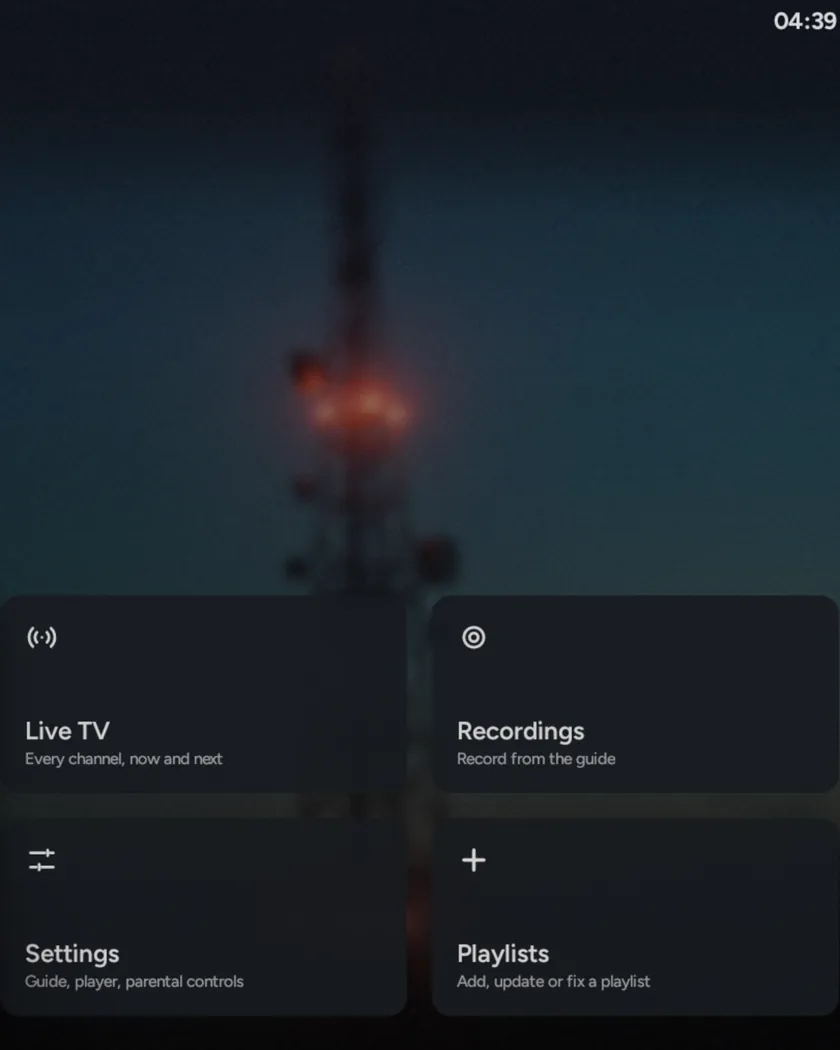
Say what you’d like to watch, in your own words, across every server, app and channel.
A channel that stalls puts itself right, or moves to the next best copy.
Every copy of a channel, in HD, 4K or another group, shares one working guide.
The TV switches to the film’s own frame rate before it starts, so pans don’t judder.
Brings quiet dialogue up and sudden loud moments down, so voices stay clear.
Reads the box, the screen and the sound system, and fills in the defaults for them.
When a channel stalls, it puts itself right.
It finds out why, reconnects, and moves to the next best copy of the channel when one keeps failing. Set it to Automatic and you won’t need to touch the remote.

Intelligent Connect
Internet connection
Provider’s service responding
Subscription still active
Reconnecting (try 2 of 4)
This channel keeps stopping
Switch to Coast Sport (FHD) from Second playlist?
SwitchNot nowDon’t ask again
It checks your internet, your provider’s service and your subscription side by side, and shows each answer as it comes.
Meanwhile it keeps reconnecting, and picks up the moment your internet is back.
When a channel keeps stopping, it switches to the same channel from another of your playlists, or the next quality down. Choose Automatic, or answer Don’t ask again once, and it happens without a key press.
The copy that held is the one it tries first next time.
When one can’t play, the next best copy starts from where it stopped. Or pick one yourself from Play from…, each copy listed with its picture and sound.
“This TV is dropping frames; the stream is fine.” A connection report with a speed test is ready to show your provider.
Rainglass reads the box, the screen and the sound system, and fills in the defaults for them: the graphics level, frame-rate matching, which formats go to your receiver.
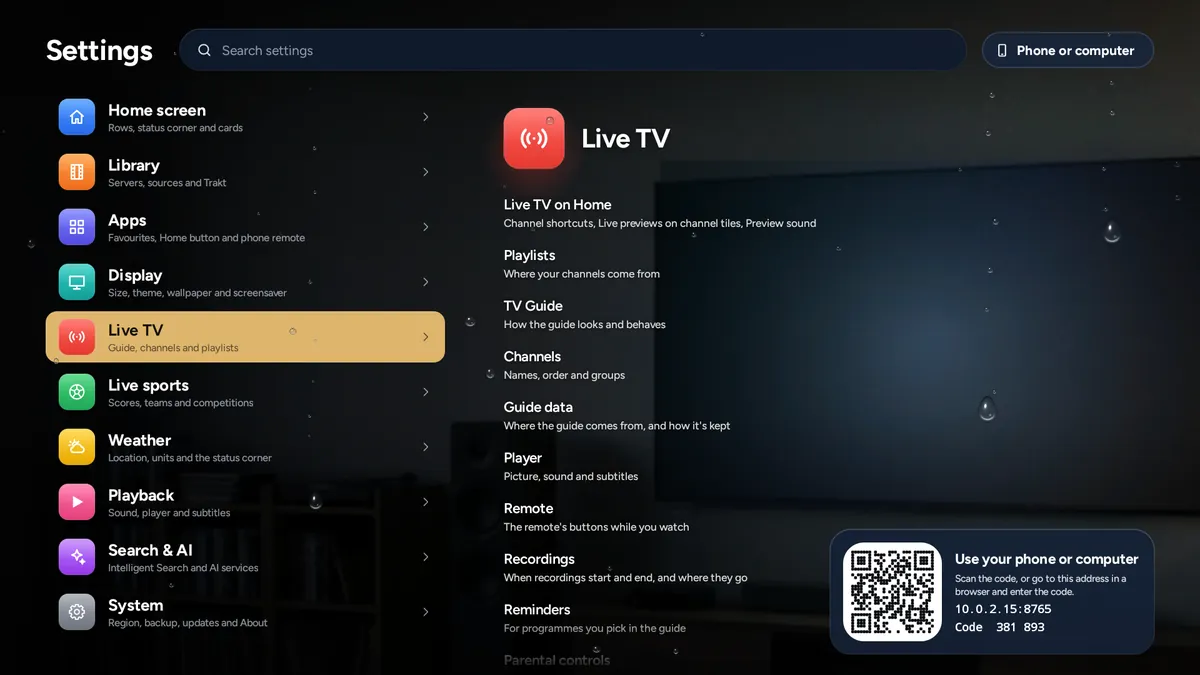
Connect Plex, Jellyfin or Emby, or skip it and use your apps. Settings is a living room that turns to each section as you move down the list.
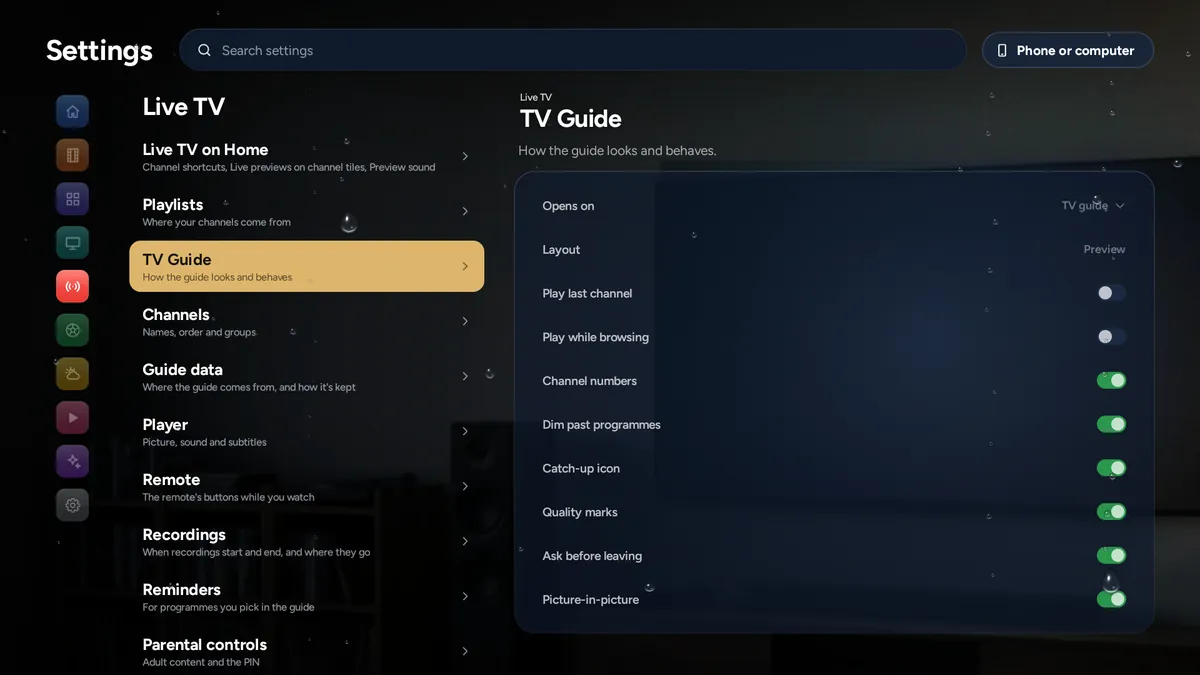
Every setting is explained in plain words.
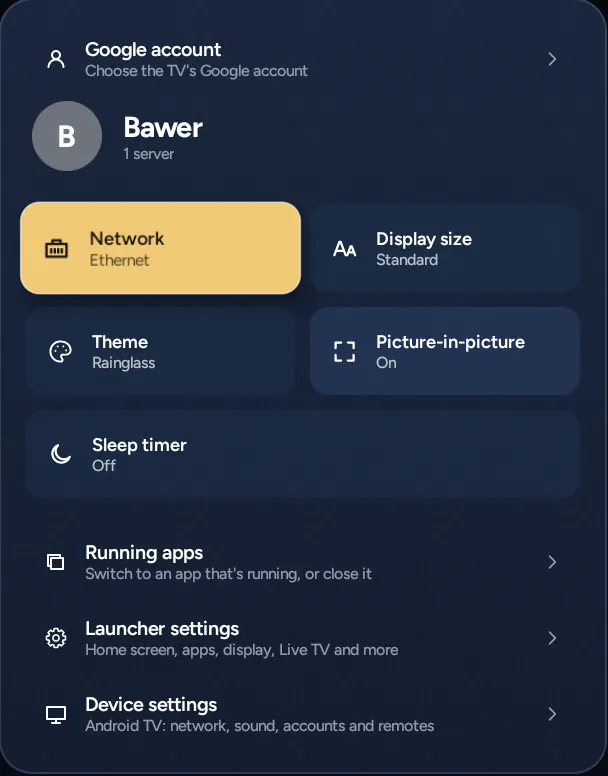
On Android TV and Google TV, the Home button opens Rainglass. Your profile picture opens a card with the network, display size, theme, sleep timer, running apps, and both Rainglass’s settings and the TV’s own.
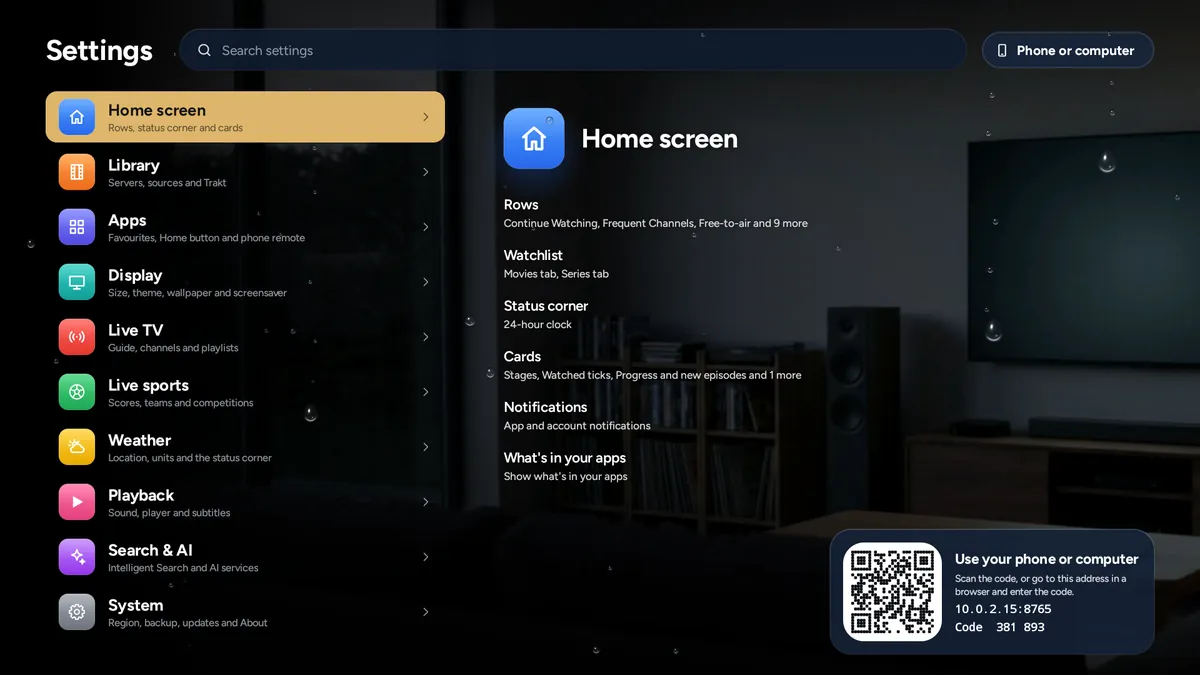
You can open Settings on your phone or computer too. Scan the code on the TV, or type its address and the six-digit code; it only works on your home network.
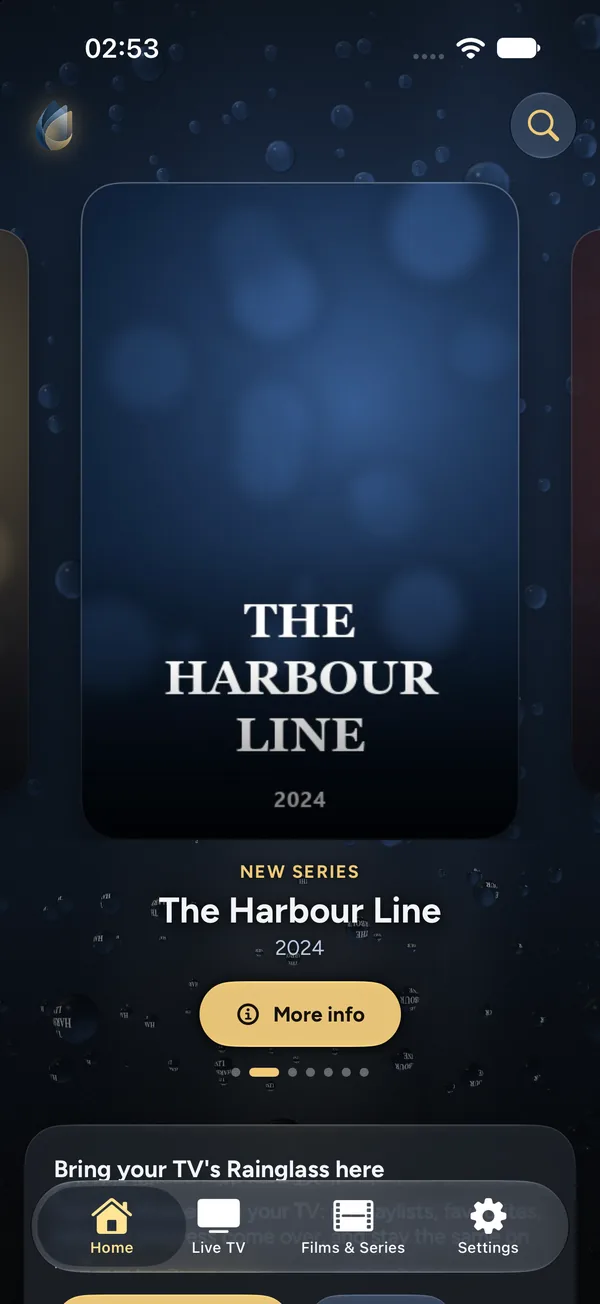
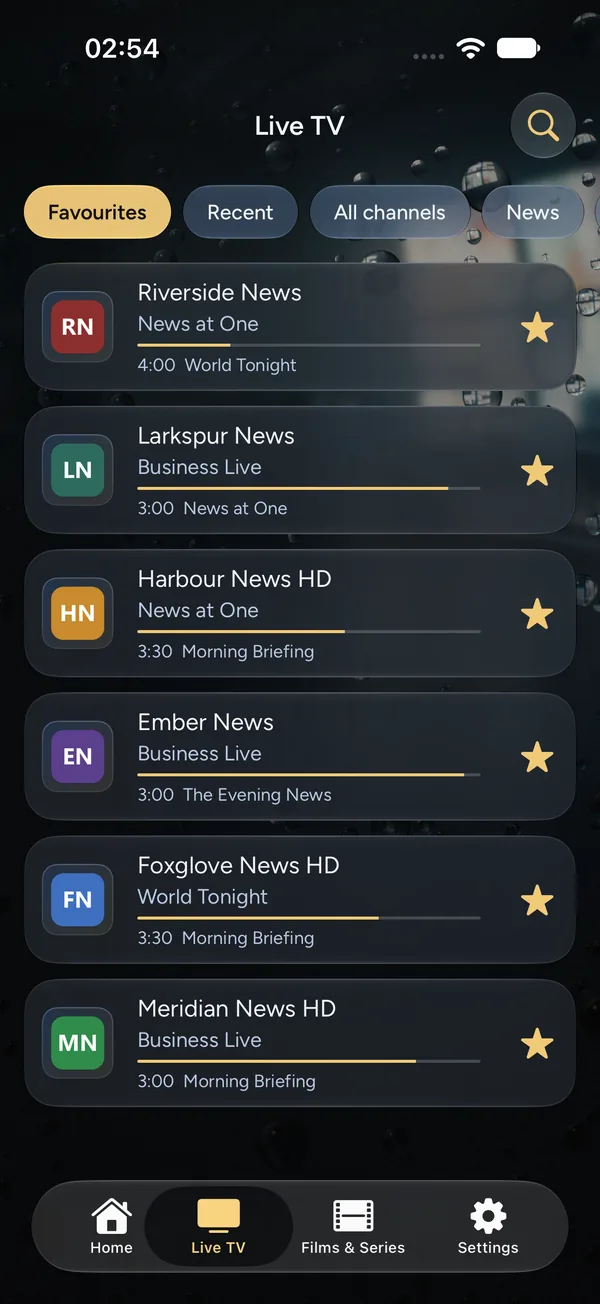
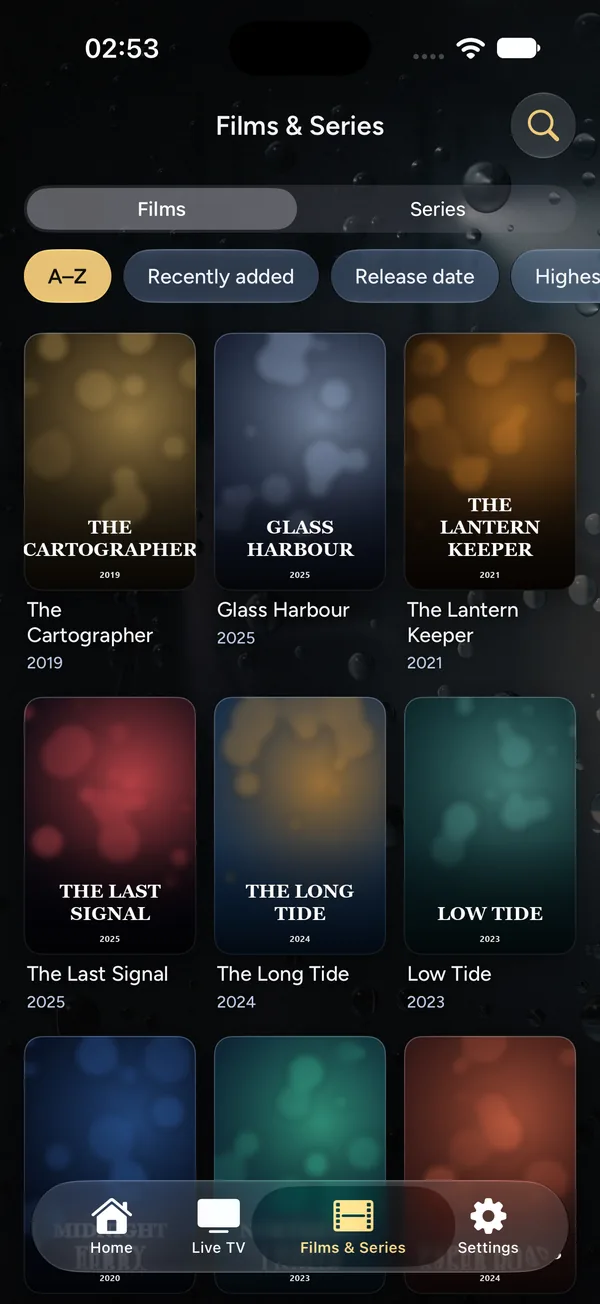
Rainglass for Android phones, iPhone and iPad brings Live TV and the films and series on your servers, with a player that skips intros and recaps and lines up the next episode.
Pair it with your TV once, and your playlists, favourites and where you stopped stay the same on both. On iPad, the tabs become a sidebar.
Shown on iPhone, with a made-up demo playlist.
Home screen, media player, Live TV, phone app and media server, made to work as one. Start a film on the TV, finish it on your phone, and your lists, channels and history follow you.
Pair a phone, a tablet or another TV once, with the code on the screen. Your playlists and their logins, favourite channels, lists and where you stopped stay the same on all of them, at home or away. It’s sealed on your device before it leaves, so our server can’t read it.
On the TV, sign in with a code from your phone. Trakt’s watchlist joins Plex’s, what you watch goes into your Trakt history as you watch it, a whole season can be marked in one go, and your Trakt plays shape what’s recommended.
Your phone finds Rainglass on the TV at home and offers to be its remote: the buttons, a keyboard for searches and sign-ins, and Play on TV from your phone. Until then, Settings shows a code that opens a remote in your phone’s browser.
Swipe the table sideways for phones and Rainglass Server.
| Feature | Android TV and Google TV | Fire TV | Phones and tablets | Rainglass Server |
|---|---|---|---|---|
| Replaces your TV’s home screen | Yes | Opens from Fire TV’s home | No | No |
| Your films and series from Plex, Jellyfin, Emby and Rainglass Server | Yes | Yes | Yes | Shares them |
| Your streaming apps on Home, with App Peek | Yes | Yes | No | No |
| Live TV: channels, guide, favourites and reminders | Yes | Yes | Yes | No |
| Recording live TV | Yes | Yes | No | No |
| Skip intros, recaps and credits; the next episode lined up | Yes | Yes | Yes | No |
| Intelligent Search and the other Intelligent features | Yes | Yes | No | No |
| Weather, scores and what’s coming up, in Home’s corner | Yes | Yes | No | No |
| Trakt: watchlist, history and recommendations | Yes | Yes | Later | No |
| Cross-device sync: playlists, favourites and where you stopped | Yes | Yes | Yes | No |
| Use your phone as the remote | In your phone’s browser | In your phone’s browser | Intelligent Remote, later | No |
| Watch your library away from home | Yes | Yes | Yes | With an invite code |
Rainglass Server shares your films and series from a Windows PC, a Mac, a Linux machine or a NAS with every TV at home. The TV finds it by itself and offers to connect. Choose Allow on the server, and that’s it.
Family in another home can watch too: give them your server’s address and an invite code, and their TV connects over the internet with nobody choosing Allow. On a NAS or a server, it runs without a window, in Docker or as a service.
Files play as they are, with nothing converted, so 4K, HDR and Dolby Vision reach the TV untouched. Posters and plots come from TMDB.
Coming soon, free
Windows 10 and 11, macOS 11 or newer on Apple silicon or Intel, and Docker for a NAS. On Linux, an AppImage for most systems and a .deb package for Ubuntu 22.04 or later and Debian 12.
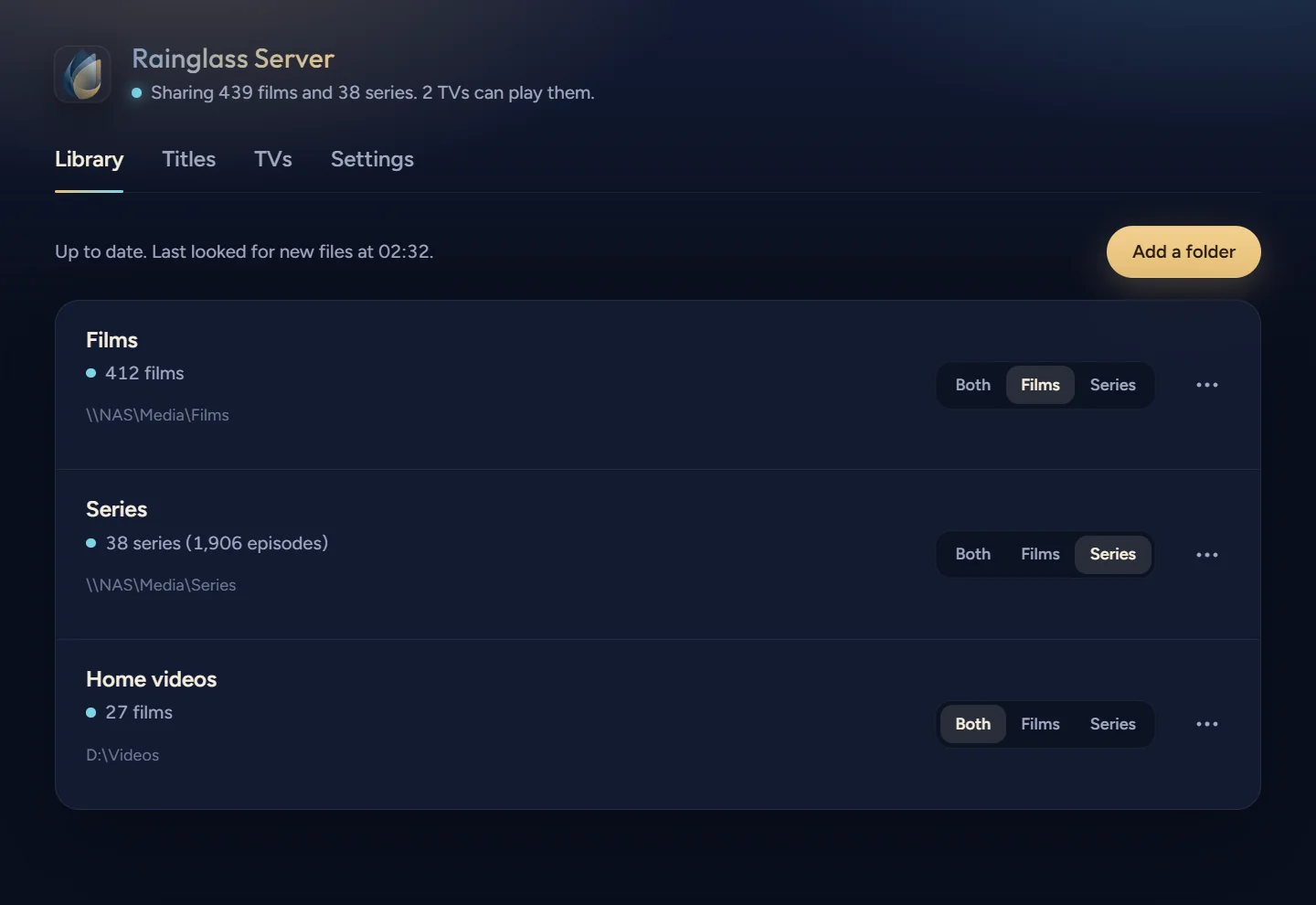
Share D:\Films and D:\TV with Rainglass, then let the living room TV in.
Shared D:\Films as filmsrainglass-server folders add "D:\Films" --kind films
Shared D:\TV as seriesrainglass-server folders add "D:\TV" --kind series
On the TV, open Rainglass and go to Settings › Library › Manage servers › Rainglass Server. What’s the six-digit code it shows?
482913
Let the TV inrainglass-server allow 482913
The living room TV is connected. It has 412 films and 38 series, and the posters are still arriving.
Rainglass Server has its own command line and MCP server, so the AI assistant on your computer can set it up and look after it for you. It works with Claude Code, Codex, Antigravity, Cursor, VS Code and others.
Connect yours from Rainglass Server’s Settings with one click, then ask in your own words: share a folder, let a new TV in, fix a film that picked up the wrong poster. It asks you for the code on the TV before it lets one in.
The assistant reaches only the Rainglass Server on its own computer. Nothing on your network can use that connection.
Android TV, Google TV, Android phones and tablets
Google Play
On Android 8 or newer. A subscription with a free trial, and no ads.
Coming soon
iPhone and iPad
App Store
On iOS 17 or newer, paired with your TV in a moment.
Coming soon
Fire TV sticks, cubes and TVs
From our website
Amazon’s store doesn’t list home screens, so Rainglass for Fire TV comes straight from our website: type a short code into the Downloader app.
Coming soon
Apple TV
App Store
Rainglass on Apple TV, in step with your other screens.
To follow
Windows, Mac, Linux and NAS
Share your films and series with every TV at home. Docker for a NAS.
Coming soon, free
Google Play is a trademark of Google LLC. App Store and Apple TV are trademarks of Apple Inc. Amazon and Fire TV are trademarks of Amazon.com, Inc. or its affiliates.
No. Rainglass is a home screen and media player. It shows what’s on your own servers, in your apps and in the sources you add. It doesn’t provide, host or distribute content.
Android TV and Google TV on Android 8 or newer, and Fire TV devices on Fire OS 7 or 8. Fire TV sticks on Vega OS, the 4K Select and newer, can’t run Android apps.
On Android TV and Google TV, yes. On Fire TV, Rainglass opens from Fire TV’s own home screen, and Fire TV keeps the Home button for itself.
No. Without a server, Home is built from your apps, App Peek and the trending rows, and the Live tab shows your channels once you add a tuner, a provider login or a playlist. For films on a computer or a NAS, Rainglass Server is free for Windows, Mac and Linux.
Yes. In Rainglass Server, go to Settings › Manage with an AI assistant and choose Connect beside yours: Claude Code, Codex, Antigravity, Cursor, VS Code, Gemini CLI, Windsurf or the Claude app. Any other assistant can run rainglass-server guide and follow it. See how it works.
Yes, on the TV; the phone apps will follow. Sign in with a code from your phone: Trakt’s watchlist sits beside Plex’s, what you watch is added to your Trakt history as you watch it, and your Trakt plays shape what’s recommended. Everything in step.
Yes. Rainglass will have a subscription with a free trial and no ads. Rainglass Server is free.
Yes. Rainglass for Android phones, iPhone and iPad pairs with your TV, so your playlists, favourites and where you stopped stay the same on both. See it on iPhone. The Apple TV version follows.